How to Calculate Your Merchant Discount Rate Step by Step
Last Updated on May 12, 2026 by Dimitri Akhrin
A practical tutorial for eCommerce managers to uncover hidden fees and find savings in payment processing
Learn to calculate your exact merchant discount rate and identify hidden fees in your payment structure. This hands-on tutorial walks you through building a fee audit spreadsheet to find potential savings of $1,500 to $4,000 annually.
TL;DR
- Calculate your effective rate by dividing total monthly fees by total monthly volume. Target 2.2% to 2.7% for eCommerce.
- Break down your merchant discount rate into three layers: interchange (non-negotiable), assessments (non-negotiable), and processor markup (negotiable).
- Hunt for hidden fees like PCI non-compliance penalties, excessive statement fees, and unexplained “other” charges that inflate your costs.
- Track monthly to catch fee increases early. Build a simple spreadsheet and add each statement to spot trends.
- Use your baseline to negotiate with your current processor or evaluate alternatives. As explained by Modern Treasury, better payment visibility and control help businesses optimize costs and improve financial decision-making.
What You Will Achieve
By the end of this tutorial, you will calculate your exact merchant discount rate, identify hidden fees in your payment structure, and build a simple fee audit spreadsheet. You will know precisely how much you pay per transaction and where savings opportunities exist.
Your success criteria: a completed fee breakdown showing interchange costs, processor markup, and additional charges. You will also have a baseline number to compare against future statements and potential new providers.
Most eCommerce managers discover 0.3% to 0.8% in unexpected fees during this process. On $500,000 in annual card volume, that represents $1,500 to $4,000 in potential savings.
Prerequisites and Setup
Before you start, gather these items:
- Your last 3 monthly merchant account statements (PDF or paper)
- Access to your payment processor’s online dashboard
- A spreadsheet application (Google Sheets, Excel, or similar)
- 30 to 45 minutes of uninterrupted time
Potential blockers: If you use a payment service provider like Stripe or PayPal, your statements may lack line-item detail. You can still complete this tutorial using transaction exports and published rate cards.
This tutorial assumes you process at least $10,000 monthly in card transactions. Lower volumes may show less fee variation.
Why This Approach Works
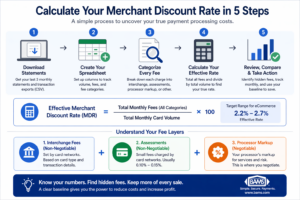
Breaking down your merchant discount rate into clear steps helps uncover hidden fees and identify real savings opportunities.
Most eCommerce managers look at their total processing cost as a single percentage. This obscures where your money actually goes.
Merchant discount rates vary based on multiple cost layers. According to the Federal Reserve, interchange structures significantly influence total transaction costs, making it critical to understand how your rate is calculated.
Breaking down each layer reveals which costs are fixed (interchange), which are negotiable (processor markup), and which might be unnecessary (add-on fees). A payment processing fee calculator approach gives you leverage in conversations with your processor.
Alternative methods include hiring a consultant or switching processors blindly. Both cost more time and money than a 45-minute self-audit.
Step 1: Download Your Statement Data
Action: Log into your payment processor dashboard and download your last 3 monthly statements as PDFs. Also export your transaction-level data as a CSV file.
Navigate to Reports or Statements in your dashboard. Look for options labeled “Monthly Statement,” “Processing Summary,” or “Fee Detail.” Download all available formats.
Expected result: You should have 3 PDF statements and at least one CSV file showing individual transactions with their associated fees.
Common failure: Some processors hide detailed statements behind “Merchant Portal” or “Back Office” links separate from your main dashboard. Check your welcome email for alternate login URLs.
Step 2: Create Your Fee Audit Spreadsheet
Action: Open a new spreadsheet and create columns for each fee category you will track.
Set up these column headers in Row 1:
Month | Total Volume | Total Fees | Interchange | Assessment | Processor Markup | PCI Fee | Statement Fee | Other Fees | Effective Rat
Expected result: A blank spreadsheet with 10 columns ready for data entry.
Common failure: Skipping the “Other Fees” column. This catch-all category often reveals the hidden charges you are hunting.
Step 3: Extract Your Total Volume and Fees
Action: From each monthly statement, find and record your total processing volume (in dollars) and total fees charged.
Look for sections labeled “Summary,” “Processing Totals,” or “Account Activity.” Your total volume appears as “Gross Sales,” “Total Transactions,” or “Card Volume.” Total fees may appear as “Total Charges,” “Processing Fees,” or “Amount Due.”
Expected result: Three rows of data showing monthly volume and corresponding fees. For example: January | $47,500 | $1,187.50.
Checkpoint: Divide total fees by total volume. Your result should fall between 0.015 and 0.035 (1.5% to 3.5%). If you see a number outside this range, double-check your data entry.
Step 4: Identify Interchange Costs
Action: Locate the interchange section of your statement and record the total interchange fees paid.
Interchange fees go to the card-issuing banks, not your processor.
On your statement, look for “Interchange Fees,” “Pass-Through Costs,” or a detailed breakdown by card type (Visa CPS Retail, MC Merit III, etc.).
Expected result: A single number representing your monthly interchange cost. This typically represents 70% to 80% of your total fees.
Common failure: Tiered pricing statements hide interchange within “Qualified,” “Mid-Qualified,” and “Non-Qualified” buckets. If you see these terms instead of interchange detail, note this. Tiered pricing often costs more than interchange-plus models.
Step 5: Calculate Assessment Fees
Action: Find and record card brand assessment fees (Visa, Mastercard, Discover, American Express network fees).
Assessment fees go directly to the card networks. They typically range from 0.13% to 0.15% of volume. Look for line items labeled “Assessments,” “Network Fees,” “Brand Fees,” or specific entries like “Visa APF” or “MC NABU.”
Expected result: A small fee, usually between 0.10% and 0.20% of your monthly volume.
Checkpoint: Add your interchange and assessment fees together. This sum represents your “true cost” floor, the minimum you would pay with any processor.
Step 6: Isolate Processor Markup
Action: Calculate your processor’s markup by subtracting interchange and assessments from your total fees.
Use this formula in your spreadsheet:
Processor Markup = Total Fees – Interchange – Assessments – PCI Fee – Statement Fee – Other Fees
Your processor markup is the negotiable portion of your costs. It includes their per-transaction fee (often $0.10 to $0.30) plus a percentage markup (often 0.15% to 0.50%).
Expected result: A number representing 15% to 30% of your total processing fees. If this exceeds 35%, you may be overpaying.
Common failure: Processors sometimes bundle markup with interchange on statements. If you cannot isolate markup, your pricing model may lack transparency. This is a red flag worth addressing.
Step 7: Identify PCI Compliance Fees
Action: Search your statement for PCI compliance fees and record them separately.
Common labels include “PCI Fee,” “PCI Compliance,” “PCI Non-Compliance,” “PCI Non-Validation,” or “Security Fee.” These fees range from $5 to $30 monthly for compliant merchants. Non-compliance penalties can reach $20 to $100 monthly.
Check whether you are paying a compliance fee or a non-compliance penalty. Many merchants pay penalties simply because they never completed their annual PCI questionnaire. All merchants accepting cards must maintain PCI compliance, regardless of transaction volume.
Expected result: A monthly fee between $5 and $30. Anything higher warrants investigation.
Step 8: Catalog Additional Fees
Action: Review your statement for any remaining charges and record them in your “Other Fees” column.
Common additional fees include:
- Statement fee ($5 to $15 monthly)
- Batch fee ($0.10 to $0.30 per daily batch)
- Gateway fee ($10 to $25 monthly for eCommerce)
- Minimum processing fee (charged if you fall below volume thresholds)
- IRS reporting fee ($5 to $25 annually)
- Chargeback fees ($15 to $50 per dispute)
Expected result: A list of every fee on your statement, categorized and totaled.
Step 9: Calculate Your Effective Rate
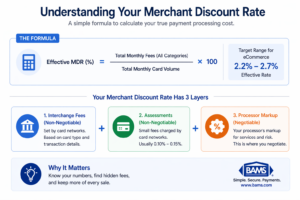
Understanding the MDR formula and its components gives you full visibility into your true payment processing costs.
Action: Divide your total monthly fees by your total monthly volume to find your effective rate.
Formula: Effective Rate = (Total Fees / Total Volume) × 100
Expected result: A percentage between 1.5% and 3.5%. Record this for each of your three months to spot trends.
Checkpoint: If your effective rate varies more than 0.3% between months, investigate why. Card mix changes, chargebacks, or fee increases could be responsible.
Step 10: Build Your Fee Comparison Baseline
Action: Calculate your average interchange cost and processor markup as percentages. These become your negotiation benchmarks.
Create these formulas:
Average Interchange Rate = (Total Interchange / Total Volume) × 100
Average Processor Markup = (Total Markup / Total Volume) × 100
Your interchange rate depends on your card mix and is relatively fixed. Your processor markup is where savings opportunities exist.
Expected result: Two percentages. Interchange typically runs 1.5% to 2.0% for eCommerce. Processor markup should be 0.20% to 0.50% on interchange-plus pricing.
If your processor markup exceeds 0.60%, you have strong grounds to negotiate or seek competitive quotes.
Configuration and Customization
Adjust your spreadsheet based on your specific situation:
High-volume merchants ($100K+ monthly): Add columns to track volume tiers. Many processors offer lower rates above certain thresholds. Verify you are receiving promised tier pricing.
Multi-currency sellers: Create separate rows for domestic and international transactions. Cross-border fees can add 1% or more per transaction.
Subscription businesses: Track card-on-file transaction rates separately. These often qualify for lower interchange categories.
Safe defaults: Use 3-month averages for all calculations. Single-month data can be skewed by seasonal volume or one-time charges.
Verification and Testing
Verify your calculations with this cross-check:
Test procedure: Add all your categorized fees (interchange + assessments + markup + PCI + statement + other). This sum should equal your total fees within $1 to $2 (rounding differences).
If the numbers do not match, you have either miscategorized a fee or missed a line item. Review your statement again.
Edge cases to verify:
- Months with chargebacks (fees spike temporarily)
- Months with refunds (volume decreases but some fees remain)
- Annual fees that appear in only one month
Common Errors and Fixes
Error: “My effective rate is over 4%”
Cause: You may be including chargebacks, refunds, or equipment costs in your fee total. Fix: Isolate only processing-related fees. Equipment leases and chargeback losses are separate line items.
Error: “I cannot find interchange detail on my statement”
Cause: You are likely on tiered or flat-rate pricing. Fix: Request an interchange-plus statement from your processor, or calculate estimated interchange using published Visa/Mastercard tables and your transaction data.
Error: “My processor markup seems negative”
Cause: Assessment fees may be bundled with interchange on your statement. Fix: Combine interchange and assessments into a single “pass-through” category, then calculate markup from remaining fees.
Error: “Fees vary wildly month to month”
Cause: Your card mix changes (more rewards cards = higher interchange), or you had chargebacks. Fix: Review transaction-level data to identify which card types increased. Consider whether surcharging strategies could offset premium card costs.
Next Steps and Extensions
Now that you have your fee baseline, put it to work:
- Negotiate with your current processor: Present your markup calculation and ask for a rate review. Processors often reduce rates for informed merchants. The NACHA ACH Network supports low-cost electronic transfers, making ACH a key strategy for reducing payment processing expenses.
- Get competitive quotes: Share your effective rate and volume with alternative providers. Ask for interchange-plus quotes to compare apples to apples.
- Set up monthly tracking: Add each new statement to your spreadsheet. Catch fee increases immediately instead of discovering them months later.
For hands-on help analyzing your statements or negotiating better rates, BAMS offers transparent interchange-plus pricing and dedicated account management.
Frequently Asked Questions
What is a merchant discount rate and how is it calculated?
The merchant discount rate (MDR) is the total percentage you pay to accept card payments. Calculate it by dividing your total monthly processing fees by your total monthly card volume. For example, $1,150 in fees on $50,000 in sales equals a 2.3% MDR. This rate combines interchange fees, card network assessments, and your processor’s markup.
How often should I audit my payment processing fees?
Review your fees quarterly at minimum. Monthly tracking catches problems faster. Processors occasionally add new fees or adjust rates without prominent notification. A quick 10-minute monthly check against your baseline prevents surprises.
What is a good effective rate for eCommerce businesses?
Most eCommerce businesses should target an effective rate between 2.2% and 2.7%. Rates below 2.0% are uncommon unless you have very high volume or primarily debit transactions. Rates above 3.0% suggest you are overpaying on processor markup or incurring unnecessary fees.
Can I negotiate interchange fees with my processor?
No. Interchange fees are set by Visa, Mastercard, and other card networks. They go to the card-issuing banks, not your processor. However, you can negotiate your processor’s markup, which typically represents 15% to 30% of your total fees.
What is the difference between PCI compliance fees and non-compliance fees?
PCI compliance fees (usually $5 to $15 monthly) cover the cost of your processor’s compliance program. Non-compliance fees ($20 to $100 monthly) are penalties charged when you have not completed your annual PCI self-assessment questionnaire. Complete your SAQ to eliminate penalty fees.
Should I use a payment processing fee calculator tool?
Online calculators provide rough estimates but cannot account for your specific card mix, transaction sizes, or current contract terms. The spreadsheet method in this tutorial gives you precise, actionable numbers based on your actual data. Use calculators only for initial comparisons when shopping for new processors.
Sources