
Automated Reminders: A Gentle Follow-Up Workflow Tutorial
Last Updated on October 12, 2026 by Dimitri Akhrin
Replace manual collection calls with scheduled, empathetic payment reminders that protect relationships and revenue
Learn how to build an automated reminder workflow for outstanding balances in high-sensitivity settings like funeral services. This step-by-step tutorial helps you eliminate manual collection calls, reduce aged receivables, and relieve staff of emotionally draining follow-up.
TL;DR
- Automate the uncomfortable task – Set up a four-email reminder sequence (Day 7, 21, 45, 60) so your staff never has to make manual collection calls on recent funeral balances.
- Tone is everything – Draft templates that acknowledge grief, state the balance clearly, and include a one-click payment link. Read every template out loud before sending.
- Segment your receivables – Insurance-pending, payment-plan, and no-arrangement families each need different messages. One generic reminder damages trust.
- Pair reminders with fast funding – Automated reminders drive faster payments, but next-day funding ensures that money reaches your bank account the following morning instead of sitting in a processing queue.
- Set expectations at the arrangement conference – Tell families upfront that automated reminders are part of your process. This one sentence reframes every follow-up email from “collection notice” to “routine system message.”
What You Will Achieve: Automated Reminders That Protect Relationships and Revenue
By the end of this tutorial, you will have a working automated follow-up workflow for outstanding funeral service balances. Instead of your staff picking up the phone to call a grieving family about a past-due invoice, a sequence of gentle, pre-written automated reminders will handle the outreach on a schedule you control.
Your success criteria are simple: no more manual collection calls on balances under 90 days, a measurable drop in aged receivables, and a front-office team that no longer dreads Monday mornings. You will build this system using tools most funeral home operators already have access to (or can adopt affordably), without a full IT overhaul.
Prerequisites and Setup Checklist
Before you start, confirm you have the following in place. Missing even one item will stall the process.
- Payment gateway with invoicing capability (e.g., Authorize.Net, PayTrace, or a similar platform your merchant services provider supports)
- Email service that allows templates and scheduled sends (your gateway’s built-in email invoicing works; a CRM with email automation is even better)
- A current aging report listing every open balance, contact email, and days outstanding
- Staff access credentials for your payment gateway dashboard
- 30 to 60 minutes for initial setup, plus 15 minutes per week for monitoring during the first month
- A quiet hour to draft message templates (the language matters more here than in any other industry)
Potential blocker: If you currently have no digital invoicing and collect only by paper or phone, you will first need to set up email invoicing. This guide on emailed invoices walks you through that prerequisite step.
Why Automation Is an Emotional Buffer, Not Just an Efficiency Metric
Most accounts receivable automation content talks about speed and cost savings. Those matter. But in funeral services, the real win is different.
Your staff chose this profession to help families during the hardest days of their lives. Asking those same people to chase a $12,000 balance three weeks after a burial creates moral injury. Automated follow-up removes your team from the uncomfortable middle, letting a calm, consistent message do the asking while your people focus on care.
This approach is not about replacing empathy with software. It is about using software to preserve empathy by removing the task that erodes it fastest.

Step-by-Step: Building Your Automated Follow-Up Workflow
Step 1: Export and Categorize Your Current Aging Report
Action: Log in to your accounting or funeral management software and export all open balances into a spreadsheet. Add a column labeled “Segment” and assign each balance one of three categories: Insurance Pending, Payment Plan Active, or No Arrangement.
Why this matters: A family waiting on an insurance assignment needs a very different message than a family who walked out without discussing payment. Sending the wrong reminder damages trust. Segmenting now prevents that.
Checkpoint: You should have three clearly labeled groups. If a large share of your balances fall into “No Arrangement,” review whether there is a gap in your at-need conference process (addressed in Step 8).
Common failure: Exported data has missing or outdated email addresses. Fix this before proceeding by cross-referencing your original service agreements.
Step 2: Draft Three Tone-Appropriate Message Templates
Action: Write one email template for each segment. Keep each under 150 words. Use second person (“you” and “your family”), acknowledge the loss in the opening line, state the balance clearly, and include a direct payment link.
Here is a starter framework for the “No Arrangement” segment:
Subject: A note regarding services for [Deceased Name]
Dear [Family Contact],
We hope your family is finding moments of peace during
this difficult time. We are reaching out regarding the
remaining balance of [Amount] for the services provided
for [Deceased Name].
You can view your statement and submit a payment
securely here: [Payment Link]
If you would like to discuss payment options or have\questions, please call us at [Phone]. We are happy to help.
With care,
[Funeral Home Name]
Checkpoint: Read each template out loud. If any sentence sounds like it could come from a collections agency, rewrite it. The tone should feel like a letter from a trusted neighbor, not a demand.
Common failure: Templates that bury the payment link below multiple paragraphs. Families who want to pay should find the link within five seconds of opening the email.
Step 3: Define Your Reminder Schedule
Action: Map out when each automated reminder fires. Use this as a starting point, then adjust the timing based on your own response data.
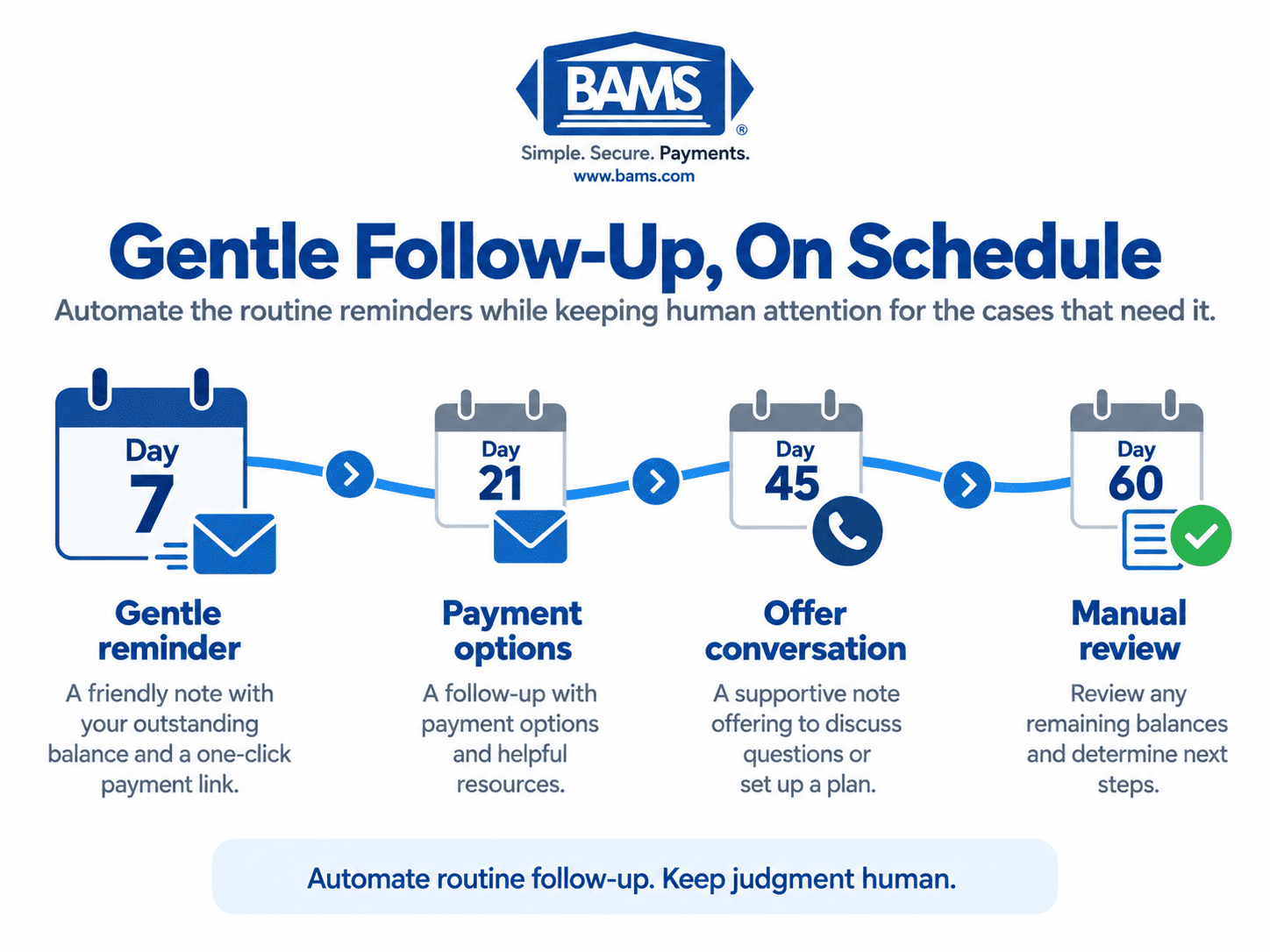
- Day 7 after service: First gentle reminder with invoice and payment link
- Day 21: Second reminder, slightly more direct, mentioning available payment plans
- Day 45: Third reminder, offering a phone conversation as an alternative
- Day 60: Final automated message before manual review
Why this cadence works: The first week after a funeral is consumed by logistics and grief. Day 7 gives families enough breathing room. By Day 60, you have made four non-intrusive contacts without a single phone call.
Checkpoint: Write down the exact day numbers. You will enter these intervals into your automation tool in Step 5.
Step 4: Set Up Your Payment Gateway’s Email Invoicing
Action: Log in to your payment gateway dashboard. Navigate to the invoicing or billing section. Create a new invoice template that includes your funeral home logo, the itemized balance and a “Pay Now” button linked to your secure payment page. When configuring online card payments, review the PCI Security Standards Council’s merchant guidance for protecting payment account data.
Expected result: A branded, professional invoice that families can pay in two clicks from their phone or computer. Most gateways (Authorize.Net, PayTrace) support this natively.
Common failure: The “Pay Now” button links to a generic payment page with no reference number. Families get confused and abandon the process. Make sure each invoice auto-populates the balance and reference ID so the family does not have to enter anything manually.
Step 5: Configure Automated Send Rules
Action: In your invoicing or CRM tool, set up automated email rules using the schedule from Step 3. Assign each template to its corresponding segment and trigger day.
If your current gateway does not support scheduled follow-ups, use an email automation tool (Mailchimp, ActiveCampaign, or even a simple Zapier integration) connected to your invoicing data. The key fields to map are: contact email, balance amount, deceased name, and days since service.
Checkpoint: Send a test sequence to yourself. Verify that the personalization tokens (name, amount, payment link) populate correctly. A reminder that says “Dear [Family Contact]” instead of an actual name will feel worse than no reminder at all.
Common failure: Automation fires on weekends or holidays. Set your send window to Tuesday through Thursday, 10 AM to 2 PM local time. These windows see the highest open rates and avoid the emotional weight of a Monday or Friday inbox.
Step 6: Add a Self-Service Payment Portal Link
Action: If your gateway supports it, create a dedicated payment page families can bookmark and return to. Include this link in every reminder and on your website’s footer.
A self-service portal lets families pay at 11 PM on a Tuesday without calling your office. This is not a minor convenience. For many people, paying a funeral bill is an emotional act they prefer to do privately, on their own schedule.
Checkpoint: Test the portal on a mobile phone. Make sure families can easily read the page, review their balance and complete a payment from a mobile device.
Step 7: Activate Next-Day Funding to Close the Cash Flow Loop
Action: Automated reminders drive faster payments, but those payments still need to reach your bank account quickly. If your current processor holds funds for 2 to 5 business days, you are undermining the speed you just built. Consider switching to a merchant services partner that offers next-day funding so that every payment a family submits at midnight is in your account the following business day.
BAMS, for example, provides next-day funding with a 9 PM EST cutoff, which pairs well with the evening payment behavior funeral home operators frequently see. Combined with automated reminders, this creates a cash flow improvement cycle: reminders go out on schedule, families pay on their own time, and funds arrive the next morning.
Checkpoint: Confirm your funding cutoff time and verify a test deposit lands the next business day.
Step 8: Create an At-Need Conference Payment Checklist
Action: Automation handles follow-up, but prevention is better than collection. Build a short checklist your arrangement staff uses during every at-need conference:
- Confirm email address for the responsible party
- Discuss payment options (full payment, installments, insurance assignment)
- Send the first invoice before the family leaves
- Set expectations: “You will receive a few gentle email reminders from us. They are automated, so please do not hesitate to call if you have questions.”
That last bullet is critical. Telling families upfront that reminders are automated removes the sting. It reframes the email from “they are chasing me” to “this is just their system.” Keep the payment conversation aligned with the FTC Funeral Rule, including its requirements for accurate, itemized price information.
Checkpoint: Print the checklist and place it in every arrangement room. After two weeks, audit how many new cases have a valid email on file. Establish an internal target your staff can monitor over time.
Step 9: Build a Weekly Dashboard Review (15 Minutes)
Action: Every Monday morning, pull a quick report that answers three questions:
- How many automated reminders went out last week?
- How many payments came in within 48 hours of a reminder?
- Which balances have passed Day 60 without response?
Only the Day 60+ accounts require human attention. This is where your office manager makes a personal, compassionate call (or refers to a third-party service). The goal is to narrow the call list so staff can focus personal outreach on accounts that still require human attention.
Checkpoint: After four weeks, your Day 60+ list should be noticeably shorter than it was before automation. If it is not, revisit your message templates (Step 2) and send schedule (Step 3).
Configuration and Customization
Every funeral home has a different rhythm. Here are the key variables you should adjust to match yours.
- Reminder frequency: The 7/21/45/60 schedule described above is a starting point. If your average service cost is above $15,000, adjust the timing or add a touchpoint with payment plan details based on your own receivables and response patterns.
- Tone per segment: Insurance-pending families need status updates, not payment requests. Adjust that template to say “We are following up on the status of your insurance assignment” rather than “Your balance is due.”
- Payment plan visibility: If you offer installment plans, feature them prominently in the Day 21 and Day 45 templates. Payment flexibility reduces abandonment.
- Send window: You can begin with the Tuesday-through-Thursday window described above and adjust it based on your own response data.
- Must-change setting: Always replace placeholder text in templates. Never send a reminder with generic bracketed fields.
Verification and Testing
Test procedure: Before going live, create a test “case” using your own email address and a fictional balance. Run the full four-message sequence at compressed intervals (one per day instead of the real schedule). Open each email on both desktop and mobile. Click every link. Complete a test payment.
Success definition: All four emails arrive with correct personalization, the payment link works on mobile, and the test payment posts to your account within the expected funding window.
Edge cases to verify:
- What happens if a family pays between reminders? Confirm the system stops sending once the balance reaches zero.
- What happens if an email bounces? Confirm bounced addresses get flagged for manual follow-up.
- What happens if a partial payment is made? Confirm the next reminder reflects the updated balance.
Common Errors and Fixes for Accounts Receivable Automation
Next Steps and Extensions
Once your automated reminder workflow is running smoothly, consider these extensions:
- Add recurring billing for payment plans. Families on installment agreements can be set up with automatic monthly charges, removing another manual touchpoint. If you use recurring ACH debits, make sure the workflow follows Nacha’s authorization requirements. Learn how recurring billing improves cash flow.
- Integrate with your funeral management software. If your case management system has an API, connect it to your invoicing tool so new cases automatically generate invoices and enter the reminder sequence.
- Track and optimize. After 90 days, analyze which reminder (Day 7, 21, 45, or 60) drives the most payments. Double down on what works and refine or remove what does not.
The goal is not to automate away compassion. It is to automate away the task that makes compassion harder. You do not need full automation. You need the right four emails, sent at the right time, so your team can get back to the work that matters.
Frequently Asked Questions
Is it insensitive to send automated payment reminders to grieving families?
Not when done thoughtfully. The alternative is a personal phone call that puts both your staff member and the family in an uncomfortable position. A well-written automated email gives families privacy, time to process, and a clear path to pay on their own terms. Setting expectations during the arrangement conference (“You will receive a few automated reminders from us”) removes any surprise.
What payment options should I offer to encourage timely payments?
At minimum, offer credit card, debit card, and ACH/bank transfer through your online payment portal. For larger balances, consider offering a structured installment plan with automatic recurring charges when appropriate. Providing multiple payment options can give families more flexibility in addressing an outstanding balance.
How do I handle balances where insurance is pending?
Create a separate reminder segment for insurance-pending cases. These emails should focus on status updates and next steps rather than payment demands. For example: “We are monitoring the status of your insurance assignment and will notify you once it is processed. If you have questions, please contact us.” Only move these accounts into the standard reminder sequence if the assignment is denied or partially paid.
How can I assess whether a family can realistically pay before extending credit?
During the at-need conference, discuss total costs transparently and ask about funding sources (insurance, savings, family contributions). This is not a formal creditworthiness assessment, but it helps you identify cases that may need a payment plan from Day 1. Documenting the agreed payment arrangement in writing protects both parties.
What if my current software does not support automated email reminders?
Many payment gateways include basic email invoicing with follow-up capability. If yours does not, a simple integration tool like Zapier can connect your invoicing data to an email platform. You do not need a full systems overhaul. Even automating a limited part of the reminder workflow can reduce the amount of follow-up your staff handles manually.
How quickly should I expect to see results after setting up automated reminders?
Results will vary based on your existing aging report, payment arrangements and reminder workflow. Track results over time to evaluate the effect on your aging report and staff workload. The Day 7 and Day 21 reminders tend to capture the families who simply forgot or were waiting for a convenient moment to pay. After 90 days, you will have enough data to measure the true impact on your aging report and staff workload.
Sources


