Automated Reconciliation: Build a Capital Visibility System
Last Updated on October 1, 2026 by Dimitri Akhrin
Turn daily deposit matching into a real-time working capital dashboard for smarter reinvestment decisions
Learn how to build an automated reconciliation process that matches payment processor deposits to your bank ledger daily. This step-by-step tutorial helps eCommerce operators see their true cash position each morning and resolve exceptions in under 15 minutes.
TL;DR
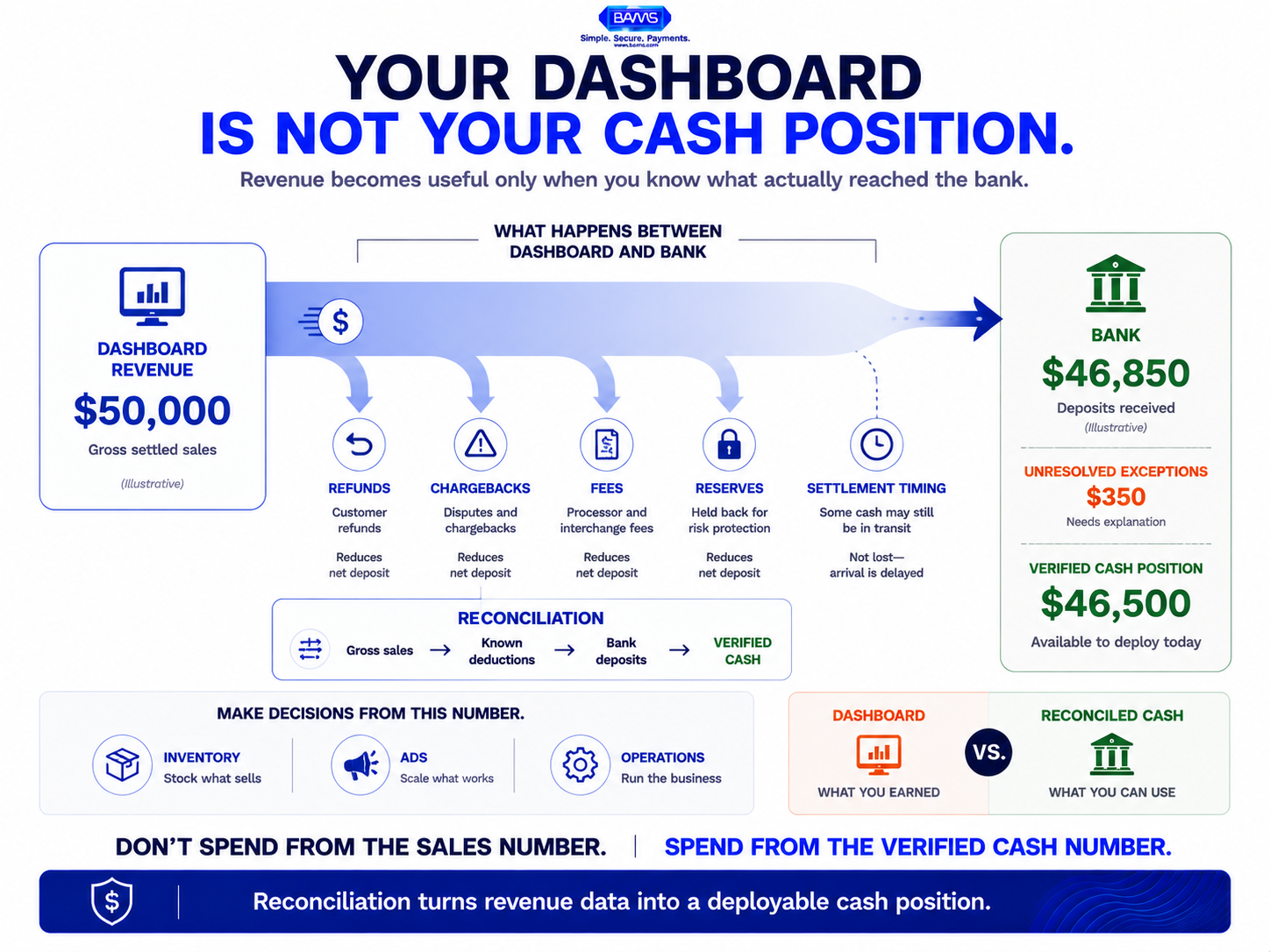
- Your dashboard and bank balance disagree for predictable reasons – Processor fees, refunds, chargebacks, reserves, and settlement timing all create gaps between what you see on your dashboard and what actually lands in your bank.
- Automated reconciliation is a working capital tool, not just an accounting task – When you reconcile daily, you know exactly how much cash you can deploy on inventory, ads, or operations today.
- Build a matching template with clear exception categories – Separate timing variances from fee variances from true errors. Most “missing money” is just delayed, not lost.
- Automate the data pull, then review exceptions only – Use APIs, bank feeds, or workflow tools to populate your reconciliation automatically. Your daily effort drops to 10 to 15 minutes of exception review.
- Next-day funding compresses the problem – Fewer open settlement windows means fewer timing variances to track, giving you a cleaner daily cash position with less effort.
What You’ll Achieve: A Reconciliation System That Shows Your Real Cash Position
By the end of this tutorial, you will have a working automated reconciliation process that matches your payment processor deposits against your bank account on a daily basis. Instead of logging in, squinting at numbers, and wondering where the gap is, you will know exactly how much working capital is available to deploy today.
Your success criteria are simple: every morning, you can verify that yesterday’s settled deposits match your bank ledger within an acceptable tolerance (typically under $1). When they don’t match, you will have a documented workflow to isolate the cause in under 15 minutes. This turns deposit reconciliation from a stressful guessing game into a reliable capital visibility system.
Prerequisites and Setup Checklist
Before you start, confirm you have the following in place. Missing any of these will create blockers later.
- Payment processor portal access with permissions to export transaction-level and batch-level settlement reports (CSV or API)
- Bank account online access with the ability to download daily transaction history in CSV or OFX format
- Spreadsheet or accounting tool such as Google Sheets, Excel, QuickBooks, or Xero
- Your merchant agreement on hand so you can reference fee schedules, reserve holdback terms, and settlement timing windows
- A dedicated email folder or Slack channel for reconciliation exceptions so nothing gets lost
- Estimated time: 2 to 3 hours for initial setup, then 10 to 15 minutes per day for ongoing reconciliation
Potential blocker: if your processor batches deposits across multiple days or combines multiple batches into a single deposit, you will need batch-level detail (not just daily summaries). Confirm your portal provides this before proceeding.
Why This Approach: Reconciliation as a Working Capital System

Modern BAMS graphic illustrating the difference between dashboard revenue and verified deployable cash through automated deposit reconciliation.
Most guides treat deposit reconciliation as a back-office accounting chore. That framing misses the point for eCommerce operators. When your bank balance doesn’t match your dashboard, you can’t confidently reinvest in inventory, ads, or operations. You either overspend (risking overdrafts) or underspend (leaving growth on the table).
This tutorial treats automated reconciliation as a live working capital visibility system. The goal is not just to “close the books” but to give you a reliable, same-day read on deployable cash. Only 22% of firms say their reconciliations are mostly automated, which means most operators are still flying partially blind. You don’t need to be one of them.
The difficulty level here is moderate. If you can build a VLOOKUP in a spreadsheet or configure a basic Zapier automation, you can do this.
Step-by-Step: Building Your Deposit Reconciliation Workflow
Step 1: Map Your Processor’s Settlement Timeline
Action: Log into your payment processor’s portal and locate the settlement or funding schedule documentation. Write down the exact timing rules for when batches close and when funds are deposited.
Most processors settle on a T+2 basis (transaction day plus two business days), but this varies. Some processors hold weekend transactions until Monday or Tuesday. Holidays add further delays. Document these rules in a simple reference table:
| Transaction Day | Expected Deposit Day | Notes |
|—————–|———————-|———————-|
| Monday | Wednesday | Standard T+2 |
| Friday | Tuesday | Weekend delay |
| Saturday | Wednesday | Batched with Monday |
Checkpoint: You should have a clear, written reference showing when each day’s sales are expected to land in your bank account. If your processor offers next-day funding, this table simplifies dramatically.
Common failure: Processors sometimes change settlement windows without prominent notice. If your deposits suddenly shift by a day, check your processor’s status page or contact support before assuming an error.
Step 2: Export Your Gross Sales and Fee Data from the Processor
Action: In your processor portal, navigate to the reports or settlements section. Export a detailed report for the previous settlement period that includes gross sales, refunds, chargebacks, processor fees, and net deposit amount.
You need line-item or batch-level granularity, not just a single net number. The formula you are verifying is:
Net Deposit = Gross Sales − Refunds − Chargebacks − Processor Fees − Reserves
Checkpoint: Your exported file should contain columns for each of these components. If your processor lumps fees into a single monthly statement instead of per-batch, note that. You will handle fee reconciliation separately in Step 6.
Common failure: Some portals default to showing “approved transactions” rather than “settled transactions.” Make sure you are pulling settled/funded data, not authorization data. Authorizations include transactions that may later decline or reverse.
Step 3: Download Your Bank Transaction History
Action: Log into your bank’s online portal and export the transaction history for the same date range as your processor report. Use CSV format if available.
Filter the download to show only deposits (credits) from your payment processor. Most processors deposit under a recognizable merchant ID or descriptor. Identify this descriptor now so you can filter reliably going forward.
Checkpoint: You should have a list of deposit amounts and dates from your bank that correspond to the settlement period you exported from your processor.
Common failure: Banks sometimes post deposits with a one-day lag from the processor’s stated settlement date, especially for deposits initiated after the bank’s cutoff time (often 5:00 PM ET). If you see a consistent one-day offset, adjust your mapping from Step 1.
Step 4: Build Your Matching Template
Action: Create a spreadsheet with two tabs: one for processor data, one for bank data. Then create a third “Match” tab that pulls from both using a lookup function.
In the Match tab, use the net deposit amount and expected deposit date as your primary matching keys. Here is a basic formula approach in Google Sheets or Excel:
=VLOOKUP(A2, BankData!A:B, 2, FALSE)
Where column A contains the expected deposit date and column B contains the deposit amount. If the VLOOKUP returns a match, the row is reconciled. If it returns an error, flag it as an exception.
Add a “Variance” column that calculates the difference between the processor’s stated net deposit and the bank’s actual deposit:
=ProcessorNetDeposit – BankDepositAmount
Checkpoint: Your Match tab should show, for each settlement batch, whether the bank deposit matches the processor’s net deposit. Variances of $0.00 are reconciled. Anything else is an exception.
Common failure: If your processor splits a single day’s sales across multiple deposits (common with multi-currency or multi-location setups), a simple one-to-one match will fail. In that case, group deposits by date and compare totals.
Step 5: Classify Your Exceptions
Action: For every row with a non-zero variance, classify the exception into one of these categories:
- Timing variance: The deposit is expected but hasn’t arrived yet (weekends, holidays, cutoff times)
- Fee variance: The processor deducted fees that weren’t included in the batch-level report
- Chargeback or refund: A reversal was applied that you haven’t yet recorded
- Reserve holdback: Your processor is holding a percentage of deposits in reserve per your merchant agreement
- True error: An amount that cannot be explained by any of the above
For a deeper walkthrough on separating timing variances from real exceptions, see this daily deposit reconciliation guide for eCommerce.
Checkpoint: Every exception should have a classification. If more than 5% of your daily transactions fall into “true error,” something systemic is wrong (proceed to the Common Errors section below).
Common failure: Operators often mistake timing variances for errors, especially around weekends and holidays. Before escalating, always check your settlement timeline from Step 1.
Step 6: Reconcile Fees Separately
Action: Many processors deduct fees monthly (not per batch). This means your daily net deposits may look correct all month, then a large fee deduction appears on your statement at month-end.
Pull your processor’s monthly fee statement and compare it against your merchant agreement’s rate schedule. Verify:
- Per-transaction fees multiplied by transaction count
- Percentage-based fees applied to gross volume
- Any monthly minimums, PCI compliance fees, or statement fees
Create a separate “Fee Reconciliation” tab in your spreadsheet. Calculate what your fees should be based on your agreement terms, then compare to what was actually deducted.
Checkpoint: Your calculated fees and actual deducted fees should match within a few cents (rounding differences). If there is a material gap, review your merchant agreement terms and fee structures or contact your processor.
Step 7: Automate the Data Pull
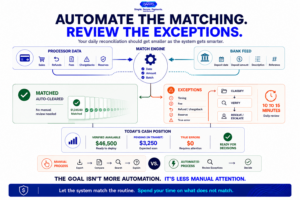
A good reconciliation system should not make you inspect every deposit. It should match routine activity automatically and leave only the exceptions that need attention.
Action: Manual exports work for setup, but they don’t scale. Automate the data ingestion step using one of these approaches:
- API integration: If your processor and bank offer APIs, connect them to your spreadsheet or accounting tool. Modern payment infrastructure can use automated reconciliation rules to match expected payments against transactions using criteria such as amount, date, direction, and custom identifiers.
- Accounting software sync: Tools like QuickBooks and Xero can pull bank feeds automatically. Configure your processor as a connected payment source.
- Zapier or Make workflow: Set up a daily trigger that exports processor settlement data to a Google Sheet, then runs your matching formulas automatically.
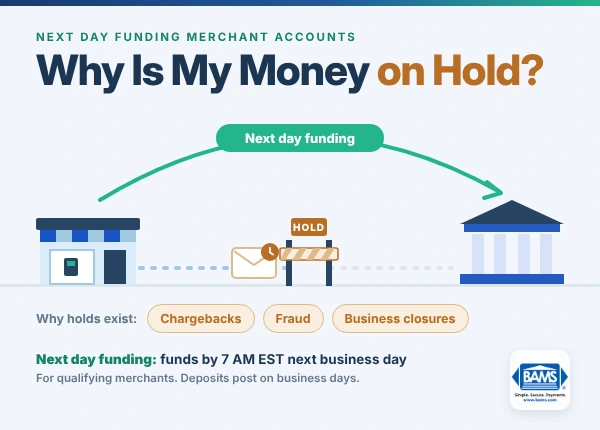
For eCommerce operators using processors that support next-day funding, the automation payoff is even larger because you are matching deposits daily rather than waiting for multi-day settlement windows to close. BAMS, for example, offers next-day funding that compresses the settlement timeline, which reduces the number of open timing variances you need to track at any given moment.
Checkpoint: Your reconciliation data should populate automatically each morning without manual exports. You should only need to review exceptions, not build the report from scratch.
Common failure: API tokens expire. Bank feed connections drop. Set a monthly calendar reminder to verify your automated connections are still active.
Step 8: Build a Daily Exception Review Routine
Action: Schedule 10 to 15 minutes each morning (ideally before you make any spending decisions) to review the Match tab. Your routine should follow this order:
- Check for new exceptions from the previous day
- Reclassify any timing variances from prior days that have now resolved
- Escalate any true errors that are older than 3 business days
- Update your rolling cash position (bank balance minus unresolved exceptions)
Checkpoint: At the end of your daily review, you should be able to state with confidence: “I have $X available to deploy today, and $Y is pending resolution.” That clarity is the whole point.
One documented case study showed that automating reconciliation cut average completion time from 94 days to 25 days and pushed on-time reconciliation rates to 85%. For a small eCommerce team, the daily version of this discipline means you stop second-guessing your cash position entirely.
Configuration and Customization
Your reconciliation template should be adjusted based on your specific business model. Here are the key variables to configure:
- Tolerance threshold: Set a variance tolerance (e.g., $0.50) below which differences are auto-cleared as rounding. This prevents noise from cluttering your exception queue.
- Multi-currency handling: If you sell internationally, add a column for currency conversion rates. Match deposits in the settlement currency, not the transaction currency.
- Refund lag window: Refunds often take 5 to 10 business days to process. Configure your template to flag refund-related variances as “pending” rather than “error” within that window.
- Reserve release schedule: If your processor holds reserves, add a tracker for when those funds are expected to release. This is real working capital you can plan around.
Safe defaults: $0.50 tolerance, 7-day refund lag window, daily matching cadence. Must-change settings: your specific processor fee schedule, settlement timeline, and reserve terms from your merchant agreement.
Verification and Testing
Before relying on your automated reconciliation system for spending decisions, test it against a known period. Pick a completed month where you have already manually verified your deposits.
Run your automated workflow against that month’s data. Every deposit should match. Every fee deduction should be accounted for. If your system flags exceptions that you know were resolved, your matching logic or settlement timeline mapping needs adjustment.
Edge cases to verify:
- A weekend that included a holiday (triple timing delay)
- A day with both a chargeback and a refund in the same batch
- A month-end fee deduction that reduced a deposit below $0 (resulting in a net debit)
If your system handles all three correctly, it is ready for production use.
Common Errors and Fixes in Deposit Reconciliation
Error: “Bank deposit is less than processor’s stated net deposit”
Symptom: Your bank shows $4,812.30 but your processor report says $4,862.30.
Cause: A $50 chargeback or chargeback fee was deducted from the batch after the settlement report was generated. Some processors apply chargebacks retroactively.
Fix: Check your processor’s chargeback or disputes section for activity on that settlement date. Cross-reference with your chargeback defense and deposit integration workflow.
Error: “Deposit appears in processor but not in bank”
Symptom: Processor shows a batch settled, but no corresponding bank deposit exists.
Cause: Timing variance. The deposit was initiated after the bank’s posting cutoff and will appear the next business day.
Fix: Wait one business day. If it still hasn’t appeared after two business days, contact your processor with the batch ID.
Error: “Monthly fees don’t match merchant agreement rates”
Symptom: Your calculated fees are $312 but your processor deducted $347.
Cause: Interchange downgrades. Transactions that didn’t qualify for the best interchange rate (e.g., missing AVS data, keyed-in instead of swiped) were charged at a higher tier.
Fix: Request an interchange qualification report from your processor. Identify which transactions downgraded and why, then fix the root cause (usually missing data fields at checkout).
Error: “Spreadsheet VLOOKUP returns #N/A for valid deposits”
Symptom: Deposits exist in both data sources but the formula can’t match them.
Cause: Date formatting mismatch between your processor export (MM/DD/YYYY) and your bank export (YYYY-MM-DD), or trailing whitespace in amount fields.
Fix: Standardize date formats using =TEXT(A2,"YYYY-MM-DD") and clean amount fields with =TRIM(CLEAN(B2)) before running your match.
Next Steps and Extensions
Once your daily reconciliation is running smoothly, you can extend this system in several directions:
- Build a rolling 7-day cash forecast by combining your reconciliation data with your settlement timeline. This lets you predict your bank balance for the coming week and plan ad spend or inventory purchases with confidence.
- Add a channel-level breakdown if you sell on multiple platforms (Shopify, Amazon, wholesale). Reconcile each channel separately to see which ones have the most timing friction.
- Connect reconciliation to your P&L so that revenue recognition aligns with actual deposits, not dashboard estimates. This makes monthly financial reviews faster and more accurate.
Nearly 70% of firms expect full reconciliation automation within five years. By building this system now, you are ahead of the curve and already using deposit predictability as a strategic lever for growth, not just a compliance checkbox.
Frequently Asked Questions
What is deposit reconciliation in merchant services?
Deposit reconciliation is the process of matching the net deposits your payment processor sends to your bank against the gross sales, refunds, chargebacks, and fees recorded in your processor’s reports. The goal is to confirm that every dollar your customers paid actually arrived in your account, minus known deductions. For eCommerce operators, this is also a way to verify your real available cash rather than relying on dashboard estimates.
Why does my bank balance never match my dashboard revenue?
Your dashboard typically shows gross sales in real time, while your bank balance reflects net deposits after processor fees, refunds, chargebacks, and reserves have been deducted. On top of that, settlement timing means deposits can lag by one to three business days (or more over weekends and holidays). These two factors combined create a persistent gap that only systematic reconciliation can close.
How often should I perform deposit reconciliation?
Daily reconciliation is the recommended cadence for eCommerce businesses that rely on cash flow for inventory and advertising decisions. A daily review takes 10 to 15 minutes once your system is set up. Monthly reconciliation is the bare minimum, but it means you are making spending decisions for 30 days without a verified cash position.
Which factors can affect the timing of merchant service deposits?
The most common factors are your processor’s settlement schedule (T+1, T+2, or longer), your bank’s posting cutoff time, weekends, federal holidays, batch close time (when your terminal or gateway submits the day’s transactions), and any reserve holdbacks specified in your merchant agreement. Multi-currency transactions and high-risk flags can also introduce additional delays.
What are common challenges faced during deposit reconciliation?
The biggest challenges are timing variances that look like errors, fee deductions that appear on a different schedule than deposits, chargebacks applied retroactively to already-settled batches, and data formatting mismatches between processor exports and bank downloads. Each of these can be solved with a structured classification system and consistent data formatting.
Can automated reconciliation really improve my cash flow decisions?
Yes. When you reconcile manually or infrequently, you are guessing at your available cash. Automated reconciliation gives you a verified number every morning. One case study showed a 75% reduction in reconciliation completion time after automation, which directly translates to faster, more confident reinvestment decisions.