
Automated Workflows for Funeral Home Billing
What You Will Build: A Billing Workflow That Protects Relationships and Cash Flow
By the end of this tutorial, you will have a fully configured funeral home billing workflow built on automated workflows that send compassionate, well-timed messages to families with outstanding funeral balances. Instead of your staff picking up the phone to make an uncomfortable collection call, the system handles outreach at predetermined intervals, each message paired with a self-service payment link that offers flexible payment options.
Your success criteria for funeral home billing are straightforward: zero manual follow-up calls on balances under 60 days, a measurable cash flow improvement in your first billing cycle and a documented communication trail that protects your funeral home legally and emotionally. You will know the workflow is working when payments arrive without a single awkward phone conversation.
TL;DR
-
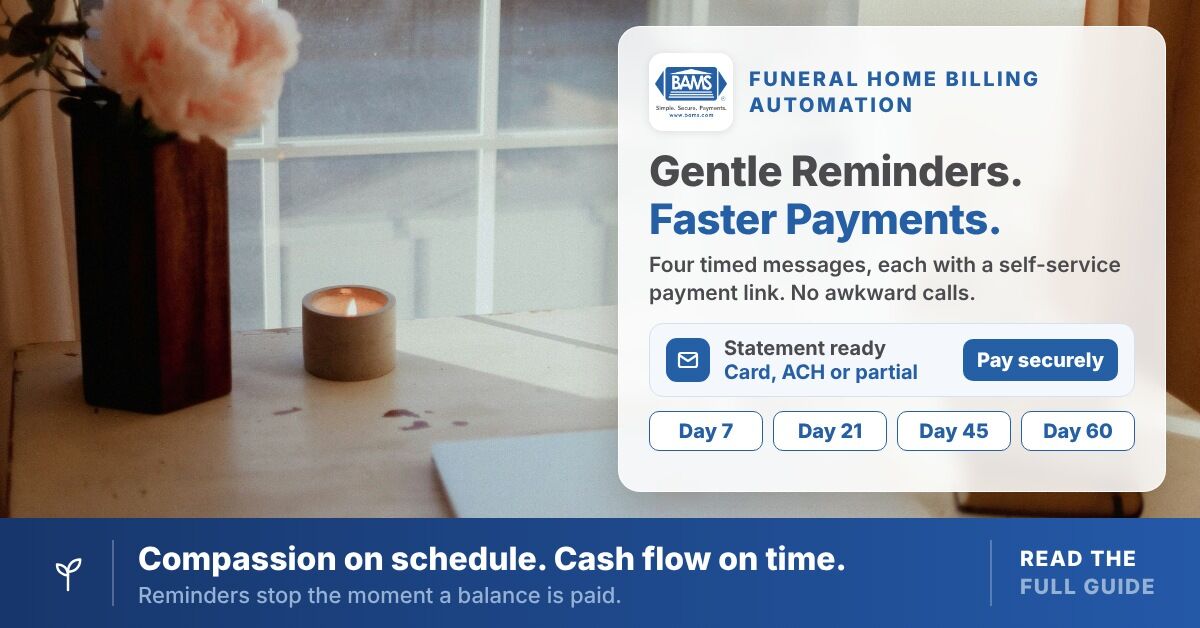
- Build a four-touch automated email sequence – Send messages at Day 7, 21, 45 and 60 after service, each with a self-service payment link, so your staff never has to make an awkward collection call.
- Segment balances by age and payment source – Separate insurance-assigned balances from family direct-pay accounts so the right people get the right messages at the right time.
- Enable multiple payment options on every invoice link – Offer credit card, ACH and partial payments to remove friction. Families who can pay on their own terms pay faster.
- Connect payment confirmations to your workflow exit – Automatically stop messages the moment a balance is paid in full. Sending a reminder after payment destroys trust.
- Track everything on a simple dashboard – Review sequence status weekly so manual follow-up only happens for the small number of accounts that reach Day 60 with no engagement.
Prerequisites and Setup Checklist
Before you begin, confirm you have the following in place. Missing any one of these will stall your progress.
- Funeral management software with exportable client and invoice data (e.g., CSV or API access)
- Email platform capable of scheduled sequences (Mailchimp, ActiveCampaign, or your management software’s built-in email tool)
- Payment gateway that supports emailed invoice links (Authorize.Net, PayTrace, or similar)
- A dedicated business email address for billing communications (e.g., billing@yourfuneralhome.com)
- Template access in a word processor or email builder for drafting messages
- 30 to 90 minutes to complete the full setup, depending on your software familiarity
Potential blocker: If your current payment gateway does not support emailed invoices, you will need to set one up first. See how emailed invoices can help you get paid faster for a walkthrough.
Why Structured Payment Sequencing Beats Ad-Hoc Manual Outreach
Most funeral home billing handles outstanding balances the same way: someone on staff eventually notices an unpaid invoice, dreads the call, delays it and then finally dials the family weeks later. The conversation is uncomfortable for everyone. The family feels ambushed. Your staff feels guilty. And your cash flow suffers the entire time.
Structured payment sequencing replaces that reactive pattern with a proactive, timed series of messages. Larger businesses are moving this way. In a Datos Insights survey of midsize and large companies, 82% of businesses not currently using automated AR solutions said they were interested in adopting them. A B2B study of U.S. service companies found that businesses using AR automation were paid an average of 23 days after the due date, compared with 28 days for those without. Funeral home billing is different from B2B invoicing, but where transactions regularly exceed $15,000, even a few days represent significant working capital.
This tutorial treats the problem as a configuration challenge, not a collections strategy. You are not learning how to chase debt. You are building a system that makes chasing unnecessary.
Step 1: Segment Your Receivables by Balance Age and Source
Action: Export your current outstanding balances from your funeral management software. Create four columns: family name, balance amount, date of service and payment source (insurance assignment, family direct pay, or preneed contract).
Sort the list into three segments:
- 0 to 14 days past service (fresh, still in the bereavement window)
- 15 to 45 days past service (families have had time to process logistics)
- 46 to 90 days past service (balances at risk of becoming delinquent)
Expected result: A segmented spreadsheet or tagged list inside your management software. Each segment will receive different message timing and tone.
Common failure: Mixing insurance-assigned balances with family direct-pay balances. Insurance claims follow a different timeline and should not trigger family-facing messages. Tag them separately and exclude them from this workflow.
Step 2: Map Your Four-Touch Message Sequence
Action: Define exactly when each automated message will send. Write these intervals on paper or in a planning document before touching any software.
- Touch 1 (Day 7 after service): A gentle “thank you” message with an itemized statement and a payment link. No urgency language. Keep it consistent with the itemized statement the FTC Funeral Rule already requires you to give families at the arrangement conference.
- Touch 2 (Day 21): A brief reminder that a balance remains, with the same payment link and a mention of available payment plan options.
- Touch 3 (Day 45): A slightly more direct message noting the outstanding timeframe, offering to set up a structured payment plan and including a phone number for questions.
- Touch 4 (Day 60): A final written notice before any manual outreach would begin, clearly stating next steps.

Each message pairs a gentle tone with a payment link, and the sequence exits the moment the balance hits zero.
Expected result: A documented timeline with four trigger points. For a deeper dive into this exact cadence, see the automated reminders gentle follow-up workflow tutorial.
Common failure: Sending Touch 1 too early (before the funeral) or too late (after 14 days, when the family has mentally moved on from logistics). Day 7 hits the right window: the service is complete and families are still in an administrative mindset handling thank-you notes, insurance paperwork and estate tasks.
Step 3: Write Message Templates with Compassionate, Clear Language
Action: Draft four email templates, one for each touch point. Every template must include three elements: an empathetic opening, a clear statement of the balance and a clickable payment link.
Here is a starter framework for Touch 1:
Subject: Statement from [Your Funeral Home Name]
Dear [Family Name],
Thank you for trusting us to care for [Deceased Name]. We are honored
to have served your family.
For your records, we have attached an itemized statement reflecting
your current balance of [Amount]. You can view and pay this balance
at your convenience using the secure link below:
[Payment Link]
If you have questions about any charges or would like to discuss
payment arrangements, please reply to this email or call us at
[Phone Number].
With care,
[Your Name]
[Your Funeral Home]
Key principle: Never use the words “overdue,” “delinquent,” or “collections” in Touches 1 or 2. These words damage trust and trigger defensiveness. Use “balance,” “statement” and “arrangement” instead. For a complete communication framework tailored to funeral home payment conversations, review the communication strategy for funeral home payment talks.
Common failure: Writing templates that are too long. Families will not read a 500-word email about their balance. Keep each message under 150 words. The payment link should be the most visually prominent element.
Step 4: Configure Your Payment Gateway to Generate Self-Service Invoice Links
Action: Log in to your payment gateway (Authorize.Net, PayTrace, or equivalent). Create an invoice for each outstanding balance. Enable the “email invoice” or “payment link” feature so each invoice generates a unique URL the family can click to pay.
Ensure the following payment options are enabled on each invoice link:
- Credit and debit card
- ACH / bank transfer
- Partial payment (so families can pay in installments without calling you)
The Federal Reserve’s 2024 Business Payments Study found continued growth in ACH use among businesses and 16% reported using instant payments in the first year the survey asked. Checks and cards remain common too. Payment habits vary widely, so offering several methods removes friction that delays payment.
Expected result: A unique payment URL for each family that you can paste into your email templates.
Common failure: Forgetting to enable partial payments. A family that owes $12,000 may be willing to pay $3,000 today but will abandon the process entirely if the system demands the full amount. Always allow partial payments.
Step 5: Build the Automated Sequence in Your Email Platform
Action: In your email platform, create a new automation (sometimes called a “workflow,” “sequence,” or “drip campaign”). Set the trigger as “contact added to list” or “tag applied.” Configure the four emails with the delays you mapped in Step 2.
Your sequence logic should look like this:
Trigger: Contact tagged "balance-outstanding"
 → Wait 7 days → Send Touch 1 (Thank You + Statement)
 → Wait 14 days → Send Touch 2 (Gentle Reminder)
 → Wait 24 days → Send Touch 3 (Payment Plan Offer)
 → Wait 15 days → Send Touch 4 (Final Written Notice)
Critical setting: Add a “goal” or “exit condition” that removes the contact from the sequence when they pay in full. Most email platforms allow you to trigger this by tagging the contact “paid” or by removing the “balance-outstanding” tag. Without this, a family that paid on Day 10 will still receive Touch 2 on Day 21, which damages your credibility.
Expected result: A live automation that sends four messages over 60 days and stops the moment the balance is resolved.
Common failure: Not testing the exit condition. Before adding real families, run a test contact through the entire sequence. Simulate a payment at Day 15 and confirm that Touches 2, 3 and 4 do not send.
Step 6: Connect Payment Confirmation to Your Workflow Exit
Action: Link your payment gateway’s confirmation event to your email platform so that when a payment is received, the contact is automatically tagged “paid” and removed from the sequence.
If your systems do not integrate directly, use one of these methods:
- Zapier or Make: Create a “zap” that watches for new payments in your gateway and updates the contact tag in your email platform.
- Manual daily check: Each morning, review payments received and manually update tags. This takes under five minutes for most funeral homes processing fewer than 20 services per month.
- Webhook (advanced): If your gateway supports webhooks, point the payment-confirmation webhook to your email platform’s API endpoint.
Expected result: A closed loop where payment automatically stops further messages.
Common failure: Partial payments not triggering the exit. If a family pays $5,000 of a $12,000 balance, they should not exit the sequence. Adjust your logic so the exit only fires when the remaining balance equals zero.
Step 7: Set Up a Payment Plan Option with Structured Installments
Action: Create a standard payment plan template (e.g., three equal monthly installments) and include it as an option in Touch 2 and Touch 3 messages. Use your payment gateway’s recurring billing feature or set up a simple agreement form that the family can sign electronically.
A payment plan offer in Touch 3 might read:
We understand that managing expenses during this time can be
challenging. If a payment plan would be helpful, we offer the
option to divide your balance into three monthly installments
of [Amount / 3].
To set this up, simply reply to this email or call us at
[Phone Number]. No additional fees apply.
This step is where your choice of payment processor matters. If your processor charges high per-transaction fees on recurring payments, installment plans eat into your margin. Processors like BAMS offer tokenized storage of customer payment information for recurring payments, plus next-day funding for qualifying merchants. Each installment can then reach your account quickly, which makes payment plans easier to offer without straining cash flow.
Expected result: A documented payment plan option that families can accept without a phone call.
Step 8: Add a Staff Dashboard for Tracking Sequence Status
Action: Create a simple tracking view (a spreadsheet, a CRM board, or your email platform’s automation report) that shows each family’s position in the sequence. Your team needs to see at a glance: who received which touch, who clicked the payment link and who has not engaged at all.
Columns to include:
- Family name
- Balance amount
- Current touch (1, 2, 3, or 4)
- Last email opened (yes/no)
- Payment link clicked (yes/no)
- Payment received (amount and date)
In the same Datos Insights survey, 46% of organizations named payment settlement speed as a gap in their payments strategy and 44% cited real-time payment visibility. This dashboard solves the visibility problem. Your office manager can review it weekly and only intervene on the small number of accounts that reach Day 60 with no engagement.
Expected result: A single view that replaces sticky notes, mental checklists and “I thought someone called them” conversations among staff.
Configuration and Customization
Variables You Should Adjust for Your Funeral Home
- Timing intervals: The 7/21/45/60-day cadence works for most family-owned funeral homes, but if your community tends to settle estate matters more slowly, consider stretching to 10/30/50/75 days.
- Payment plan terms: Three installments is a safe default. For balances over $15,000, consider offering four or six installments. Never offer plans longer than six months without a signed agreement.
- Sender name: Use a real person’s name (e.g., “Sarah at Greenfield Funeral Home”) rather than a generic “billing department.” Families respond better to a human name.
- Reply-to address: Set this to a monitored inbox. If a family replies to an automated message and gets no response, you have created a worse experience than the phone call you were trying to avoid.
Settings You Must Change from Defaults
- Unsubscribe link: Most email platforms add an unsubscribe link by default. Billing statements are transactional, not marketing, so send them through your platform’s transactional email option, which typically omits the marketing unsubscribe link. Check your platform’s transactional email documentation for instructions.
- Tracking pixels: Enable open and click tracking so your dashboard (Step 8) has data. Without this, you are flying blind.
Verification and Testing
Test procedure: Before going live, add yourself and one staff member as test contacts with the “balance-outstanding” tag. Run through the full 60-day sequence on an accelerated schedule (set delays to 1 day instead of 7/14/24/15 for testing purposes).
Verify each of these checkpoints:
- Touch 1 arrives on schedule with the correct balance and a working payment link
- Clicking the payment link opens the correct invoice with card, ACH and partial payment options enabled
- Completing a test payment triggers the exit condition and stops remaining messages
- A partial payment does not trigger the exit condition
- The staff dashboard updates to reflect each event (email sent, opened, clicked, paid)
Success definition: All four messages deliver correctly, the payment link works and the exit condition fires accurately. If any checkpoint fails, fix it before adding real families to the sequence.
Common Errors and Fixes
Error: Families Receive Messages After Paying
Symptom: A family calls to say they already paid but just received a reminder. Cause: The exit condition is not connected to your payment gateway, or there is a sync delay. Fix: Check your Zapier/Make connection or webhook. If using manual tagging, process payment tags the same day payments arrive, not the next morning.
Error: Payment Link Returns a “Not Found” Page
Symptom: Family clicks the link and sees an error. Cause: The invoice was deleted or expired in your payment gateway. Fix: Set invoice expiration to 90 days minimum. Never delete an invoice while the family is still in the email sequence.
Error: Emails Land in Spam
Symptom: Open rates are below 10% and families say they never received a message. Cause: Your sending domain lacks proper authentication. Fix: Configure SPF, DKIM and DMARC records for your billing email domain. Your email platform’s documentation will have step-by-step instructions for this.
Error: Staff Cannot Tell Which Families Need Manual Follow-Up
Symptom: After 60 days, no one knows who still owes money. Cause: The dashboard from Step 8 was not maintained. Fix: Assign one staff member to review the dashboard every Monday. This single weekly habit makes the entire system work.
Error: High-Balance Families Feel the Messages Are Impersonal
Symptom: A family with a $20,000 balance complains that they received a “form letter.” Cause: You used the same template for all balance amounts. Fix: Create a separate sequence for balances over $10,000 with slightly more personalized language and a direct invitation to discuss arrangements. For guidance on that conversation, see the funeral home payment communication strategy.
Next Steps and Extensions
With your core four-touch sequence running, you have removed the most painful part of funeral home billing. Here are three ways to extend this work:
- Add an insurance-assignment track: Build a parallel sequence for balances where insurance is the primary payer. The timing and language differ (you are following up with an insurance company, not a grieving family).
- Audit your processing costs: If you are running multiple installment payments per family, your per-transaction fees add up. Review the seven payment processing cost signals funeral homes should audit to make sure your processor is not quietly eroding your margins on every recurring charge.
- Integrate preneed contract payments: Families with preneed contracts often have partial balances at the time of service. Add a preneed-specific trigger to your workflow so those balances enter the sequence automatically on the date of service.
Frequently Asked Questions
Which payment options should I offer families to encourage timely payments?
At minimum, offer credit card, debit card and ACH bank transfer through your self-service payment link. Enable partial payments so families can pay in installments without calling your office. The Federal Reserve’s 2024 Business Payments Study shows that small businesses and their customers use a wide mix of payment methods, so limiting options creates unnecessary friction.
How can I create an effective communication strategy for funeral balance collection?
Build your funeral home billing strategy around timing and tone. Send the first message seven days after the service, when families are still handling administrative tasks. Use empathetic, brief language. Never use words like “overdue” or “delinquent” in early messages. Structure your outreach as a four-touch sequence (Day 7, 21, 45, 60) so each message escalates gradually in directness while always offering a self-service payment link.
How do automated reminders improve cash flow for funeral homes?
Automated reminders remove the delay caused by staff hesitation. When a human has to make an uncomfortable call, that call often gets postponed by days or weeks. Automated workflows send messages on schedule regardless of anyone’s comfort level. One B2B study found that businesses using AR automation were paid about five days faster on average. Funeral home billing differs from B2B invoicing, but for high-ticket transactions, any faster payment improves working capital.
What if a family responds to an automated message with a complaint or special circumstance?
Set your reply-to address to a monitored inbox so a real person can respond within 24 hours. If a family requests a payment plan or disputes a charge, pause their automated sequence by removing the “balance-outstanding” tag and handle their case manually. The automation handles the majority of accounts; your staff handles the exceptions.
Is it appropriate to send billing emails to families who are grieving?
Yes, when the timing and tone are right. Families expect to receive a statement after a funeral service. A clear, compassionate email on Day 7 is far less intrusive than an unexpected phone call on Day 30. The key is to frame the message as a service (providing records and convenient payment access) rather than a demand.
How do I know if my current payment processor supports this kind of workflow?
Check whether your processor allows you to generate emailed invoice links with multiple payment methods, partial payment capability and recurring billing for installment plans. If it lacks any of these, or if per-transaction fees make installment plans cost-prohibitive, it may be worth evaluating a processor built for high-ticket, low-volume businesses like funeral homes.
Sources
- Billtrust: New Report Reveals a Growing Interest in B2B Accounts Receivable Automation
- Alternative Payments: B2B Payment Trends (2024)
- Federal Reserve: 2024 Business Payments Study (Payments Insights Brief)
- Federal Trade Commission: Complying with the Funeral Rule
- Mailchimp: About Transactional Email


