Payment Gateway Integration: Map L3 Fields Right
Last Updated on July 1, 2026 by Dimitri Akhrin
A step-by-step walkthrough for populating commodity codes, tax amounts, and line-item details to hit the lowest interchange tier
Learn exactly how to locate, populate, and verify Level 3 data fields inside common eCommerce gateways. This tutorial walks through gateway-specific field paths and validation steps so your transactions qualify at the lowest interchange rate, cutting per-transaction costs by 0.30%–0.50% or more.
TL;DR
- L3 data fields (tax, freight, commodity codes, line-item details) must be explicitly mapped and populated in your gateway’s API calls. Gateways don’t auto-fill them, and empty fields mean your transactions downgrade to higher interchange rates.
- Each gateway has a different configuration path. Authorize.Net uses XML objects in the transaction request, NMI uses flat key-value parameters, Braintree requires a support ticket to enable L3, and Stripe requires interchange-plus pricing and integer-based amounts in cents.
- Commodity codes are the most commonly missed field. Add UNSPSC codes to your product catalog starting with your top 50 SKUs by revenue. Without valid codes, L3 qualification fails entirely.
- Tax amounts must reconcile exactly. The sum of all line-item tax values must match the order-level tax total down to the penny. Implement a rounding adjustment on the last line item to prevent mismatches.
- Verify results with an interchange qualification report from your processor after live transactions settle. This is the only way to confirm your fields are passing correctly and your transactions are qualifying at the L3 tier.
What You’ll Achieve: Lower Interchange Rates Through Proper L3 Field Mapping
By the end of this tutorial, you will have located, populated, and verified every Level 3 (L3) data field your payment gateway integration needs to qualify transactions at the lowest possible interchange tier. That means correctly mapping commodity codes, tax amounts, freight charges, and line-item details across your eCommerce platform and gateway so card networks stop downgrading your transactions.
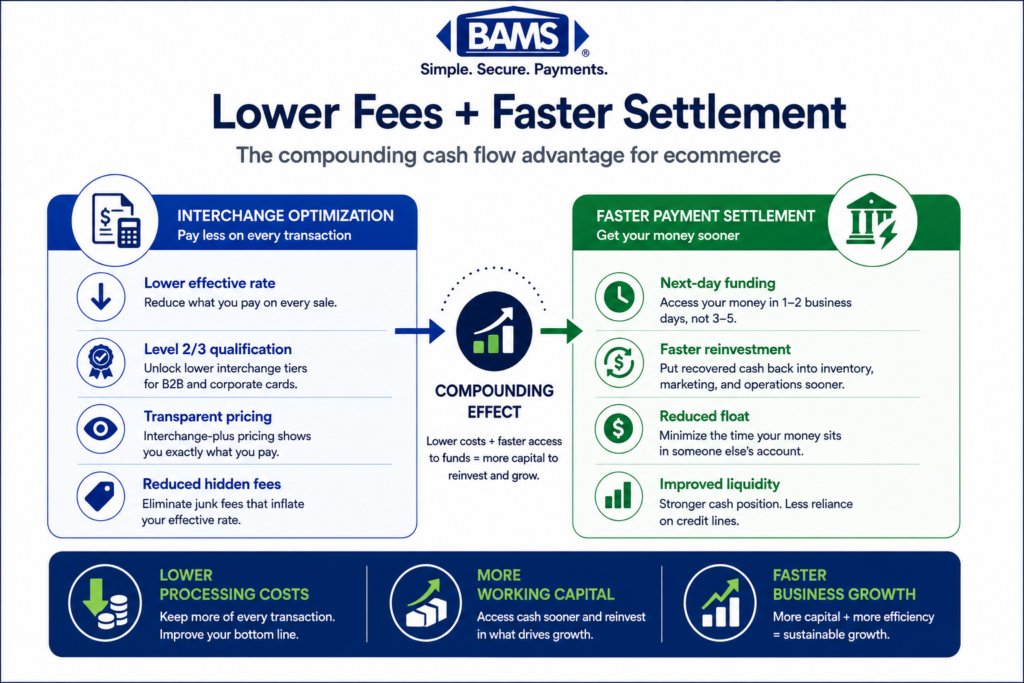
Your success criteria are simple: run a test transaction, pull the interchange qualification report from your processor, and confirm the transaction landed at the L3 rate instead of the standard or mid-qualified tier. When it does, you’ll see a measurable drop in per-transaction costs, often 0.30% to 0.50% or more on B2B and high-ticket orders.
Prerequisites and Setup Checklist
Before you touch a single field, confirm you have the following in place. Missing any one of these will stall your progress.
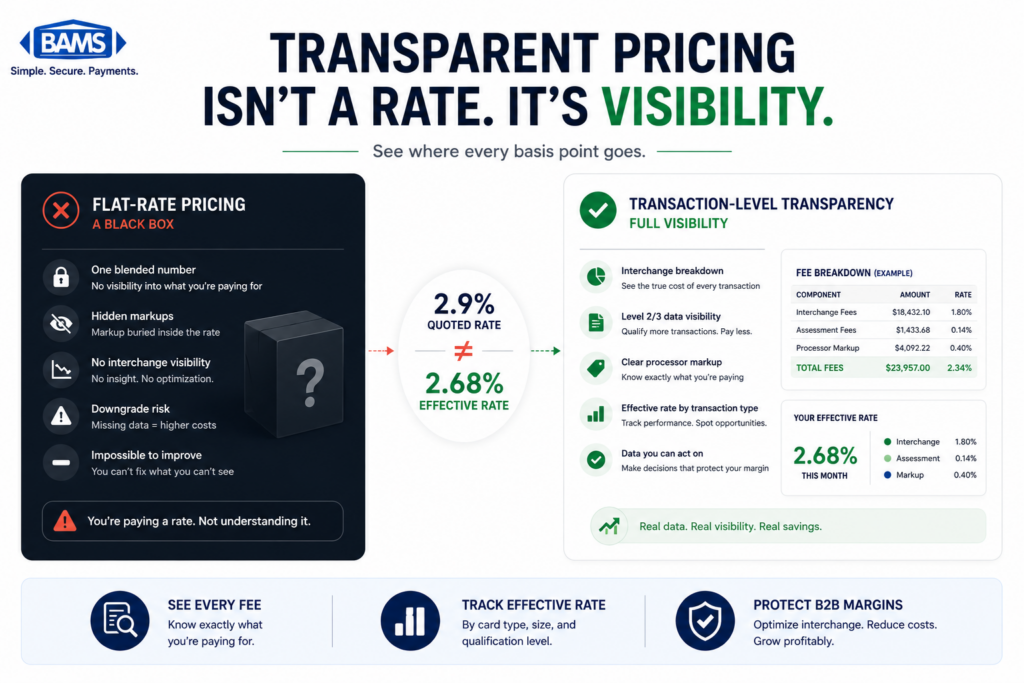
- Interchange-plus pricing on your merchant account. L3 savings only pass through to you on interchange-plus. If you’re on flat-rate pricing, the processor pockets the difference. Not sure which model you’re on? Read this breakdown of flat rate vs. interchange-plus pricing to find out.
- Gateway API access or admin-level credentials for your payment gateway (Authorize.Net, NMI, Braintree, Stripe, or similar).
- Your product catalog with commodity codes. You need UNSPSC or SIC codes for every SKU.
- Tax engine or tax-rate configuration already calculating tax per line item (not just order-level tax).
- A test/sandbox environment so you can validate fields before going live.
- Time estimate: 4 to 8 hours for a single gateway; 2 to 3 weeks if you’re integrating across multiple platforms. Estimated to be 2 to 8 weeks for full payment gateway projects depending on complexity.
Why L3 Field Mapping Matters (and Why Nobody Else Is Showing You How)
Card networks like Visa and Mastercard offer three interchange tiers: Level 1 (basic), Level 2 (enhanced), and Level 3 (full line-item detail). Visa interchange reimbursement fee schedules illustrate how enhanced transaction data can qualify commercial transactions for lower interchange categories when required Level 2 and Level 3 fields are transmitted correctly.
Most eCommerce transactions default to Level 1 because gateways don’t auto-populate the required fields. You’re paying the highest possible rate on every qualifying transaction, and you probably don’t know it.
The difference between L1 and L3 qualification can be significant, especially on corporate purchasing cards and high-value orders. Yet no major eCommerce guide walks through the actual field paths and validation steps. This tutorial fills that gap. We’ll cover the specific fields, where they live in four common gateway setups, and how to confirm they’re passing correctly to reduce processing costs on every qualifying sale.
Step 1: Identify Which Transactions Qualify for L3 Rates
Not every transaction benefits from L3 data. Focus your effort where it pays off.
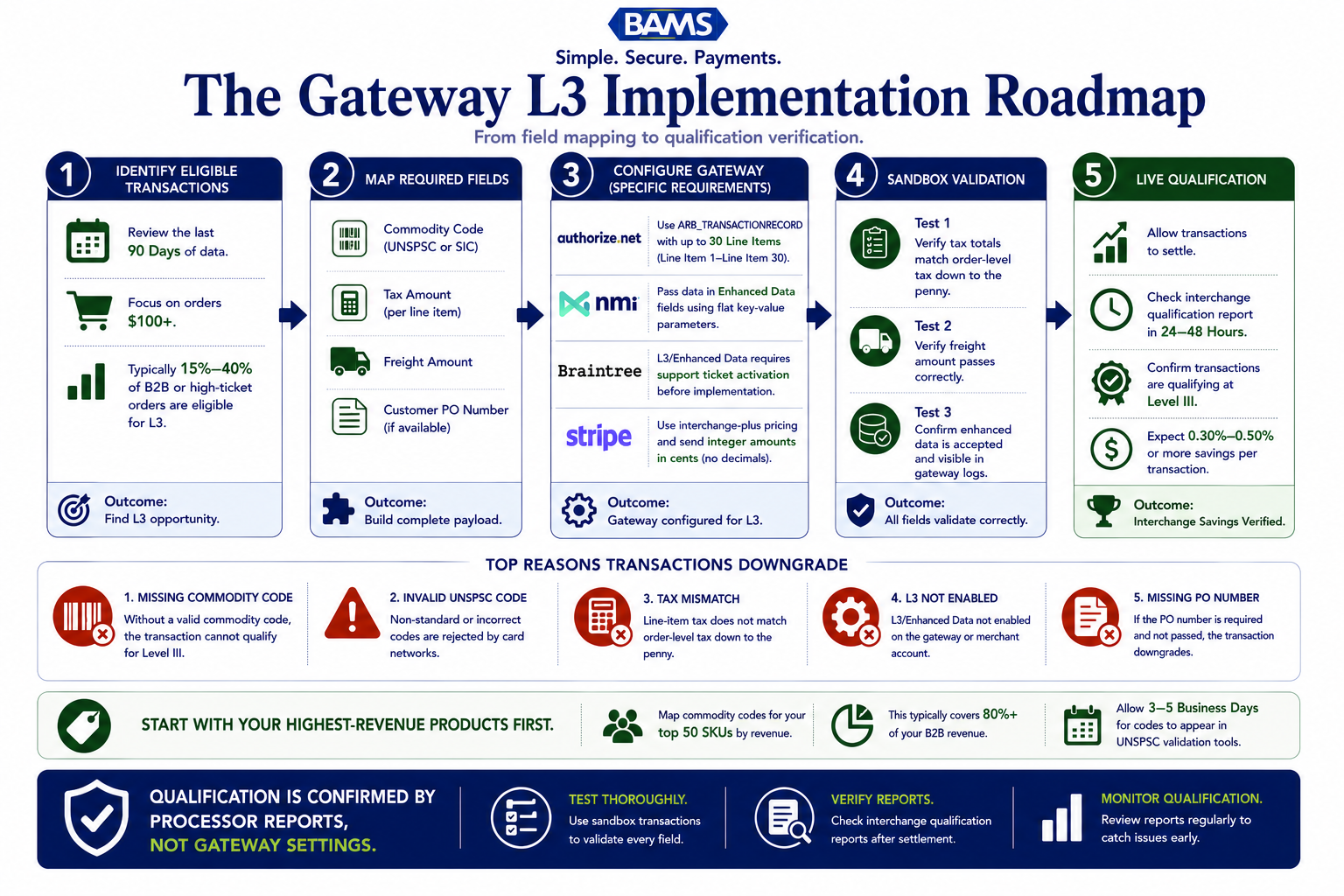
Action: Pull your last 90 days of transaction data and filter for these characteristics:
- Corporate, purchasing, or government cards (BIN ranges starting with specific prefixes; your processor can provide a list). Mastercard commercial card acceptance research highlights the growing importance of optimizing commercial card acceptance and transaction data quality for merchants serving business buyers.
- Order values above $100 (the savings percentage matters more on higher tickets)
- B2B orders where the buyer uses a company-issued card
Expected result: You should be able to estimate what percentage of your volume is L3-eligible. For many eCommerce merchants selling to businesses, this is 15% to 40% of total card volume.
Common failure: You can’t identify card types in your reporting. Fix: Ask your processor for a report segmented by card program (commercial vs. consumer). If they can’t provide one, that’s a red flag about your current provider’s transparency.
Step 2: Map the Required L3 Fields to Your Data Sources
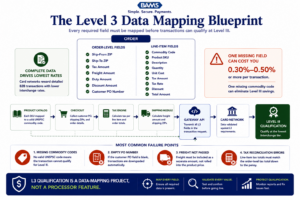
L3 qualification depends on complete data transmission. One missing field can downgrade the entire transaction.
L3 qualification requires specific data points at both the order level and the line-item level. Here’s the complete field list with where each value should come from in your eCommerce system.
Order-Level Fields
- Ship-From Zip Code — Your warehouse or fulfillment center zip code (static value)
- Ship-To Zip Code — Customer’s shipping address zip (from checkout)
- Order-Level Tax Amount — Total tax for the order (from your tax engine)
- Order-Level Freight/Shipping Amount — Total shipping charged (from your shipping module)
- Duty Amount — Set to 0.00 for domestic orders
- Discount Amount — Total order discount applied (from your cart)
- Customer Reference / PO Number — Buyer-supplied PO number (critical for B2B)
Line-Item Fields (Repeat for Each SKU)
- Commodity Code — UNSPSC code for the product
- Product Code/SKU — Your internal SKU
- Item Description — Plain-text description (max 35 characters for Visa)
- Quantity — Number of units
- Unit of Measure — “EA” (each), “BX” (box), etc.
- Unit Cost — Price per unit before tax
- Line-Item Tax Amount — Tax on this specific line
- Line-Item Tax Rate — Percentage applied
- Line-Item Discount — Discount on this line
- Line-Item Total — (Quantity × Unit Cost) + Tax − Discount
Checkpoint: Create a spreadsheet mapping each field above to the exact database column or API property in your ecommerce platform. If any field returns null or empty, flag it now.
Step 3: Configure L3 Fields in Authorize.Net
Authorize.Net supports L3 data through its Advanced Integration Method (AIM) API. The fields aren’t exposed in the standard admin dashboard; you must pass them programmatically.
Action: In your API call to createTransactionRequest, add the order, shipping, tax, and lineItems objects. Here’s the structure:
<transactionRequest><order><invoiceNumber>INV-20987</invoiceNumber><purchaseOrderNumber>PO-44210</purchaseOrderNumber></order><tax><amount>14.52</amount><name>State Tax</name></tax><shipping><amount>8.99</amount><name>UPS Ground</name></shipping><lineItems><lineItem><itemId>SKU-1234</itemId><name>Widget A</name><quantity>3</quantity><unitPrice>45.00</unitPrice><taxAmount>10.13</taxAmount></lineItem></lineItems></transactionRequest>
Key detail: Authorize.Net accepts up to 30 line items per transaction. If your orders regularly exceed 30 SKUs, you’ll need to consolidate line items or use a gateway that supports more.
Common failure: Tax and shipping amounts are passed as zero even though the order has them. Fix: Verify your eCommerce plugin is populating these fields in the API payload, not just displaying them on the receipt. Use the Authorize.Net sandbox transaction detail to confirm values appear.
Step 4: Configure L3 Fields in NMI (Network Merchants Inc.)
NMI is popular among independent merchant service providers and supports robust L3 passthrough. You configure fields via the Three Step Redirect API or Direct Post API.
Action: Append L3 parameters to your sale request. NMI uses a flat key-value format:
shipping=8.99tax=14.52ponumber=PO-44210ship_from_postal=90210item_product_code_1=SKU-1234item_commodity_code_1=43211503item_description_1=Widget Aitem_quantity_1=3item_unit_cost_1=45.00item_tax_amount_1=10.13item_tax_rate_1=7.50item_unit_of_measure_1=EAitem_total_amount_1=145.13
Expected result: The NMI transaction detail screen should show an “Enhanced Data” or “Level III” tab with all fields populated.
Common failure: Commodity codes are left blank because your product catalog doesn’t store them. Fix: Add a custom field to your product database for UNSPSC codes. For a quick start, use the UNSPSC code search to look up your top 20 SKUs by revenue and populate those first.
Step 5: Configure L3 Fields in Braintree
Braintree (a PayPal service) supports L2 data natively but requires coordination with their support team for full L3 passthrough. This is a critical distinction many merchants miss.
Action: In your transaction.sale() call, include the L2 fields directly:
result = gateway.transaction.sale({“amount”: “168.51”,“payment_method_nonce”: nonce,“tax_amount”: “14.52”,“shipping_amount”: “8.99”,“ships_from_postal_code”: “90210”,“purchase_order_number”: “PO-44210”,“line_items”: [{“name”: “Widget A”,“kind”: “debit”,“quantity”: “3”,“unit_amount”: “45.00”,“total_amount”: “135.00”,“product_code”: “SKU-1234”,“commodity_code”: “43211503”,“tax_amount”: “10.13”,“unit_of_measure”: “EA”}]})
Key detail: Braintree’s transaction.sale documentation lists L2/L3 fields under “Level 2 and Level 3 Processing.” You must contact Braintree support to enable L3 on your merchant account; it’s not turned on by default.
Common failure: You pass all the fields, but your account isn’t L3-enabled. Transactions still qualify at L1 only. Fix: Open a support ticket with Braintree explicitly requesting L3 processing enablement. Expect 3 to 5 business days for activation.
Step 6: Configure L3 Fields in Stripe
Stripe’s approach is different. Stripe handles L2 data automatically for eligible cards by pulling tax and shipping from the PaymentIntent metadata. Full L3 with line-item detail requires Stripe’s Level 3 data feature, which is available on custom and direct integrations.
Action: When creating a PaymentIntent, include the level3 parameter (available via the API, not the dashboard):
{“amount”: 16851,“currency”: “usd”,“payment_method”: “pm_card_visa”,“level3”: {“merchant_reference”: “INV-20987”,“shipping_amount”: 899,“line_items”: [{“product_code”: “SKU-1234”,“product_description”: “Widget A”,“quantity”: 3,“unit_cost”: 4500,“tax_amount”: 1013,“discount_amount”: 0}]}}
Key detail: Stripe uses integer amounts in cents. Passing $14.52 as “14.52” instead of 1452 will cause a validation error. Also note that Stripe’s L3 support is currently limited to U.S.-issued Visa and Mastercard corporate cards.
Common failure: The level3 parameter is rejected with an “invalid parameter” error. Fix: Confirm your Stripe account is on a pricing plan that supports L3 (typically Stripe’s interchange-plus plan, not the default 2.9% + $0.30 flat rate). You may need to contact Stripe sales to switch.
Step 7: Add Commodity Codes to Your Product Catalog
This is the step most merchants skip, and it’s the single biggest reason L3 qualification fails. Without a valid commodity code on each line item, the entire transaction downgrades.
Action: Export your product catalog. For each product, look up the appropriate UNSPSC code and add it as a custom attribute or field.
- Example: A laptop bag maps to UNSPSC code 53121602 (“Luggage, Computer cases”).
- Example: A box of printer paper maps to UNSPSC code 14111514 (“Printer or copier paper”).
Shortcut: Start with your top 50 SKUs by revenue. These likely represent 80%+ of your L3-eligible volume. You can backfill the rest over time.
Checkpoint: Query your product database for any SKU where the commodity code field is null. That count should be zero for your top 50 products before you proceed.
Step 8: Verify Line-Item Tax Calculations
Card networks validate that line-item taxes sum to the order-level tax total. A mismatch of even one cent will cause a downgrade.
Action: Create a test order with at least three line items at different tax rates. Compare:
- Sum of all
item_tax_amountvalues - The
taxvalue at the order level
These must match exactly. Rounding errors are the most common culprit. If your tax engine rounds per line item, the sum may differ from the order total by $0.01 or $0.02.
Fix: Implement a reconciliation step in your checkout logic that adjusts the last line item’s tax by the rounding difference. This is standard practice and won’t affect your tax reporting.
Step 9: Validate and Test in Sandbox
Every gateway listed above has a sandbox or test mode. Use it before touching live transactions.
Action: Run three test transactions in your sandbox environment:
- Test 1: Single line item, standard tax, no discount
- Test 2: Multiple line items, mixed tax rates, freight included
- Test 3: Order with a discount code applied, zero freight (digital product)
For each test, verify:
- All L3 fields appear in the gateway’s transaction detail view
- No fields show as null, empty, or zero when they should have values
- Tax totals reconcile between line-item and order levels
Expected result: The gateway’s transaction detail should display an “Enhanced Data” section with every field populated. If your gateway doesn’t show this in sandbox, contact their support to confirm L3 visibility in test mode.
Step 10: Go Live and Monitor Interchange Qualification Reports
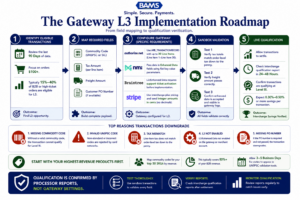
The fields are similar across gateways. The implementation path is not.
Once sandbox tests pass, deploy to production and monitor your results.
Action: After your first week of live L3 transactions, request an interchange qualification report from your processor. This report shows which tier each transaction qualified at.
If you’re working with a merchant services partner like BAMS, they can pull this report for you and highlight which transactions qualified at L3 versus which ones downgraded. Their dedicated account managers can also pinpoint specific fields that are causing downgrades, saving you hours of debugging.
What to look for:
- Transactions on corporate/purchasing cards should now show L3 qualification
- Your effective processing rate should decrease within the first billing cycle
- Any remaining downgrades indicate a field that’s still empty or misconfigured
Configuration and Customization: Key Variables to Adjust
Not every merchant’s setup is identical. Here are the variables you’re most likely to need to customize.
- Ship-From Zip Code: If you use multiple warehouses, this should dynamically populate based on which location fulfills the order. A hardcoded value works only for single-warehouse operations.
- Unit of Measure: Default to “EA” (each) for most retail products. Use “BX” for boxed goods, “CS” for cases, “KG” for weight-based items. The Visa Supplier Qualification documentation lists accepted values.
- Item Description Length: Visa caps descriptions at 35 characters; Mastercard allows up to 40. Truncate programmatically to avoid silent failures.
- Duty Amount: Set to 0.00 for all domestic U.S. transactions. Only populate for cross-border orders where import duties apply.
- Discount Handling: If you offer percentage-based discounts, calculate the dollar amount per line item. Never pass a percentage symbol in a currency field.
Verification and Testing: Confirming L3 Qualification
Your ultimate test isn’t in the sandbox. It’s in the interchange qualification report from your processor after real transactions have settled.
Test procedure:
- Process 10 to 20 live transactions on corporate or purchasing cards with full L3 data
- Wait for settlement (typically 24 to 48 hours)
- Request the interchange detail report from your processor
- Verify that these transactions show qualification at “Level III” or “Data Rate III”
Edge cases to verify: Orders with only digital products (no freight), orders with 100% discount codes, and orders shipping to PO boxes (which may lack a full zip+4). Each of these can trip up L3 validation if your logic doesn’t handle them explicitly.
Common Errors and Fixes When Mapping Tax and Freight Fields
Error: “Tax amount mismatch” or silent downgrade
Symptom: Transaction processes successfully but qualifies at L1. Cause: Sum of line-item tax amounts doesn’t equal order-level tax. Fix: Add a rounding reconciliation step that adjusts the last line item’s tax to force an exact match.
Error: “Invalid commodity code”
Symptom: API returns a validation error or the field is silently dropped. Cause: You’re passing an outdated or non-existent UNSPSC code. Fix: Re-verify the code at unspsc.org. Codes are updated periodically; a code valid two years ago may have been deprecated.
Error: Freight field shows $0.00 on orders with shipping
Symptom: Shipping charges appear on the customer receipt but not in the gateway’s L3 data. Cause: Your eCommerce platform calculates shipping after the payment object is created, so the value isn’t included in the API call. Fix: Restructure your checkout flow so shipping calculation completes before the payment request fires.
Error: L3 fields accepted in sandbox but rejected in production
Symptom: Everything works in test mode; live transactions fail or downgrade. Cause: Your production merchant account doesn’t have L3 processing enabled. Fix: Contact your gateway or processor to enable L3 on your live account. This is a separate activation from sandbox capabilities.
Error: PO Number field is blank on B2B orders
Symptom: Corporate card transactions still downgrade despite all other fields being correct. Cause: The customer reference or PO number field is required for L2/L3 on many card programs. Fix: Add a PO Number field to your checkout form for B2B customers. If the buyer doesn’t provide one, auto-populate with your invoice number.
Next Steps: Optimize Transaction Routing Beyond L3
With L3 fields properly mapped, you’ve unlocked the lowest interchange tier for qualifying transactions. Here’s where to go next.
- Audit your full processing cost stack. L3 savings address interchange, but markup, assessment fees, and gateway fees also affect your bottom line. A detailed guide on what to evaluate in a payment processor can help you benchmark the rest.
- Optimize transaction routing by directing different card types to the processor or gateway that offers the best rate for that specific card network and transaction size.
- Explore alternative payment methods. Encouraging ACH or debit payments on high-ticket B2B orders can reduce costs even further than L3 card rates. See this guide on selecting eCommerce merchant services that support multiple payment methods.
The API-hosted payment gateway segment is projected to grow at about 16% CAGR through the next decade, reflecting how quickly merchants are moving toward customizable integrations. The work you’ve done here positions you to take full advantage of that shift.
Frequently Asked Questions
What are the best strategies to reduce payment processing fees?
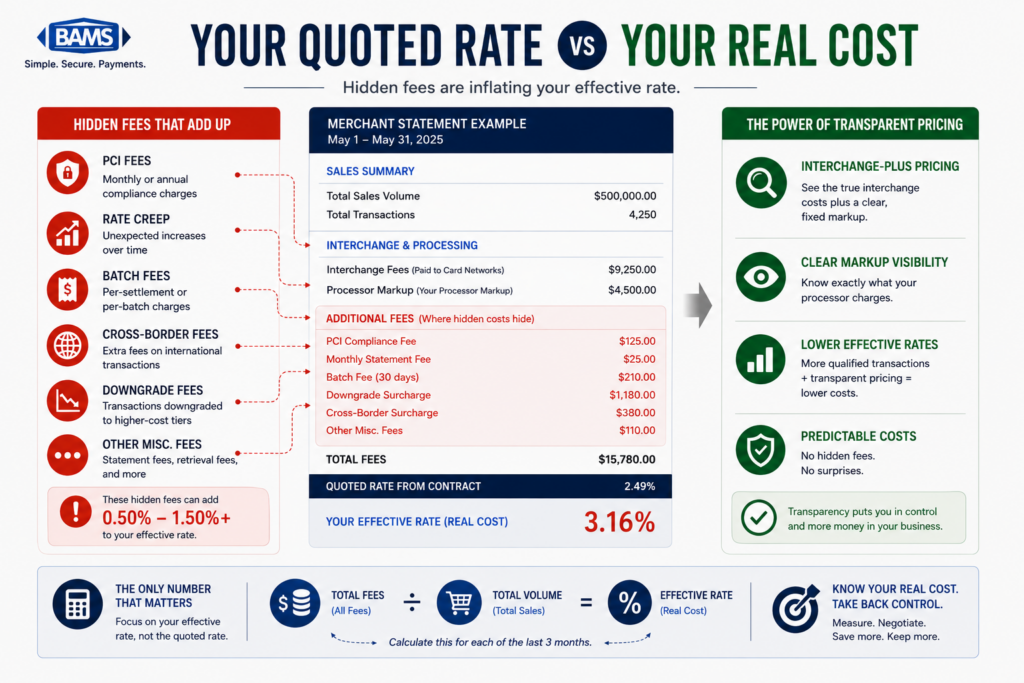
The most impactful strategy for eCommerce merchants is ensuring your transactions qualify at the lowest interchange tier by passing complete Level 2 and Level 3 data (tax, freight, commodity codes, line-item detail). Beyond that, switching from flat-rate to interchange-plus pricing, encouraging debit or ACH payments on large orders, and regularly auditing your processing statements for hidden markups will compound your savings.
How does optimizing transaction data affect processing fees?
Card networks like Visa and Mastercard offer lower interchange rates when transactions include detailed data such as tax amounts, shipping costs, and product-level commodity codes. Without this data, your transactions default to the highest interchange tier. Properly mapping L3 fields can save 0.30% to 0.50% per transaction on qualifying corporate and purchasing card orders.
Why is interchange-plus pricing more beneficial than flat-rate pricing?
Interchange-plus pricing separates the base interchange rate (set by card networks) from your processor’s markup. This transparency means that when you qualify transactions at lower interchange tiers through L3 data, you actually see the savings. Flat-rate processors charge the same percentage regardless, so any interchange savings go to the processor, not to you.
How can I audit my payment processing statements for hidden fees?
Request an interchange qualification report from your processor. This report shows the exact tier each transaction qualified at and the associated rate. Look for transactions that downgraded from L3 or L2 to L1, as these represent money left on the table. Also check for unexplained line items like “non-qualified surcharges” or “downgrade fees,” which often indicate missing transaction data.
Do all payment gateways support Level 3 data?
No. Many gateways support L2 data (tax and PO number) by default but require special enablement or API-level integration for full L3 line-item data. Authorize.Net, NMI, Braintree, and Stripe all support L3, but each requires different configuration steps. Some hosted checkout solutions and simpler gateway integrations do not support L3 at all.
What is a commodity code and where do I find the right one for my products?
A commodity code is a standardized classification number that identifies what type of product was sold. The most commonly accepted standard is UNSPSC (United Nations Standard Products and Services Code). You can look up the correct code for your products at unspsc.org. Each line item in an L3 transaction needs a valid commodity code, or the entire transaction may downgrade to a higher interchange tier.
Sources
- https://usa.visa.com/content/dam/VCOM/download/merchants/visa-usa-interchange-reimbursement-fees.pdf
- https://developer.authorize.net/api/reference/index.html
- https://secure.nmi.com/merchants/resources/integration/integration_portal.php
- https://www.mastercard.com/us/en/news-and-trends/Insights/2025/the-state-of-commercial-card-acceptance-2025.html